


In today’s data-driven world, integrating tools like Salesforce, AWS S3, and Tableau enables businesses to manage and analyze data more effectively. For instance, when you connect AWS S3 to Tableau, it allows seamless visualization of cloud-stored data. Storing Salesforce records as .csv/.xls files in an Amazon S3 bucket offers a secure, scalable solution while reducing the data storage load on Salesforce.
Tableau
- We already know that Tableau is a robust tool for data visualization and business intelligence that converts raw data into an interactive, visually compelling, and easy-to-understand format.
- It’s widely used to build dashboards, reports, and visual analytics, empowering individuals and organizations to make informed, data-driven decisions.
S3 bucket
- Amazon S3 (Simple Storage Service) is a cloud-based storage solution from Amazon Web Services (AWS) that enables users to store and access vast amounts of data securely and with scalability.
Why do Businesses Opt for Amazon S3 to Store Salesforce Files?
- If Salesforce data storage is nearing its limit, the Salesforce team should consider alternative solutions, such as storing records elsewhere or deleting records from Salesforce that are no longer needed. However, since these records may still be used occasionally, it’s also important to keep that in mind.
- Businesses choose Amazon S3 to store Salesforce records as .csv/.xls files because it offers cost-effective, expandable storage with great security and dependability.
- It easily integrates with Salesforce and Tableau, enabling businesses to store files externally while maintaining easy access. S3 provides flexible storage and fast retrieval, perfect for managing large data.
Let’s go into the configuration steps that need to be completed before connecting the S3 bucket to Tableau.
AWS Configuration :
S3 Bucket : Upload Files
- Log in to your AWS Console and open the S3 service.
- Click the ‘Create bucket’ option and follow the field mappings:
- Bucket type: General purpose
- Bucket name: ivwsffiles
- Object Ownership: ACLs disabled
- Block all public access: checked
- Leave all other settings as default and click the ‘Create bucket’ button.
- Once the bucket is created, open it and click the Upload.
- Click ‘Add files’, select the Salesforce .xls file, and click Upload.
Identity and Access Management (IAM) : Create an API user
- Navigate to the following path:
- Select Services (top left corner)
- Choose IAM
- Click on Users
- Click Create User
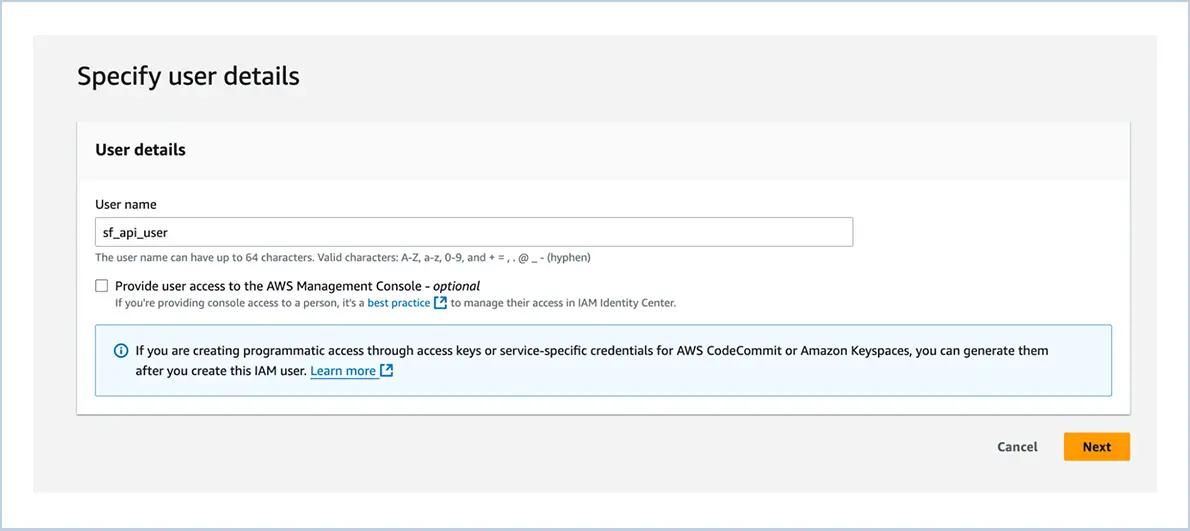
- Enter the desired username
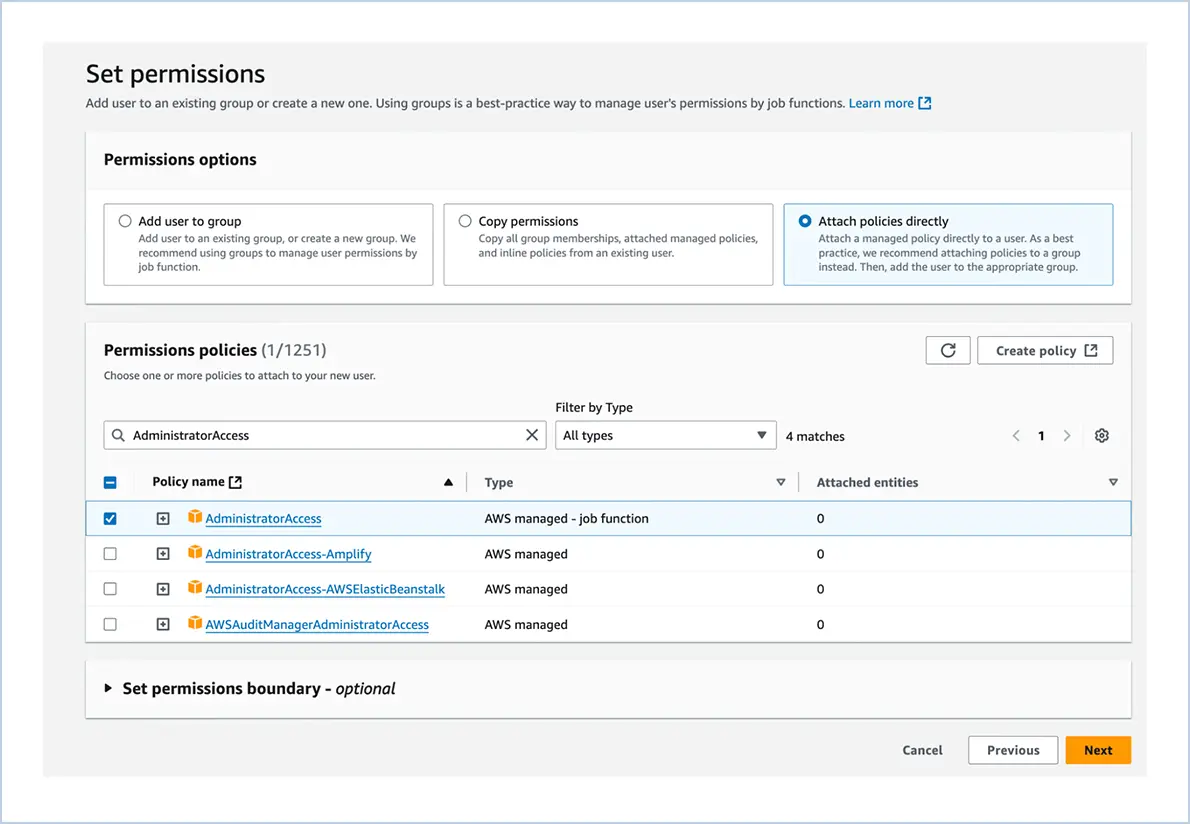
- On the next screen, for permissions options choose ‘Attach policies directly’ and provide Admin access (or permissions as needed).
- Click Next, then Create User.
- Open the user details and click the ‘Create access key’ button.
- Under Use case, select ‘Command Line Interface (CLI)’.
- Confirm and proceed to the next page, then create the access key.
- Once completed, download the secret access keys .csv file. This file will be needed for the Tableau setup.
Tableau Configuration :
- Open the Tableau Prep application and click ‘Connect to Data’.
- Select the Amazon S3 option. This will open a new page where we need to populate the following values.
- Bucket Region – This can be found on the URL (for example us-east-1)
- Bucket Name – s3 bucket name (ivwsffiles)
- Access Key ID – From the downloaded secret .csv file
- Secret Access Key – From the downloaded secret .csv file
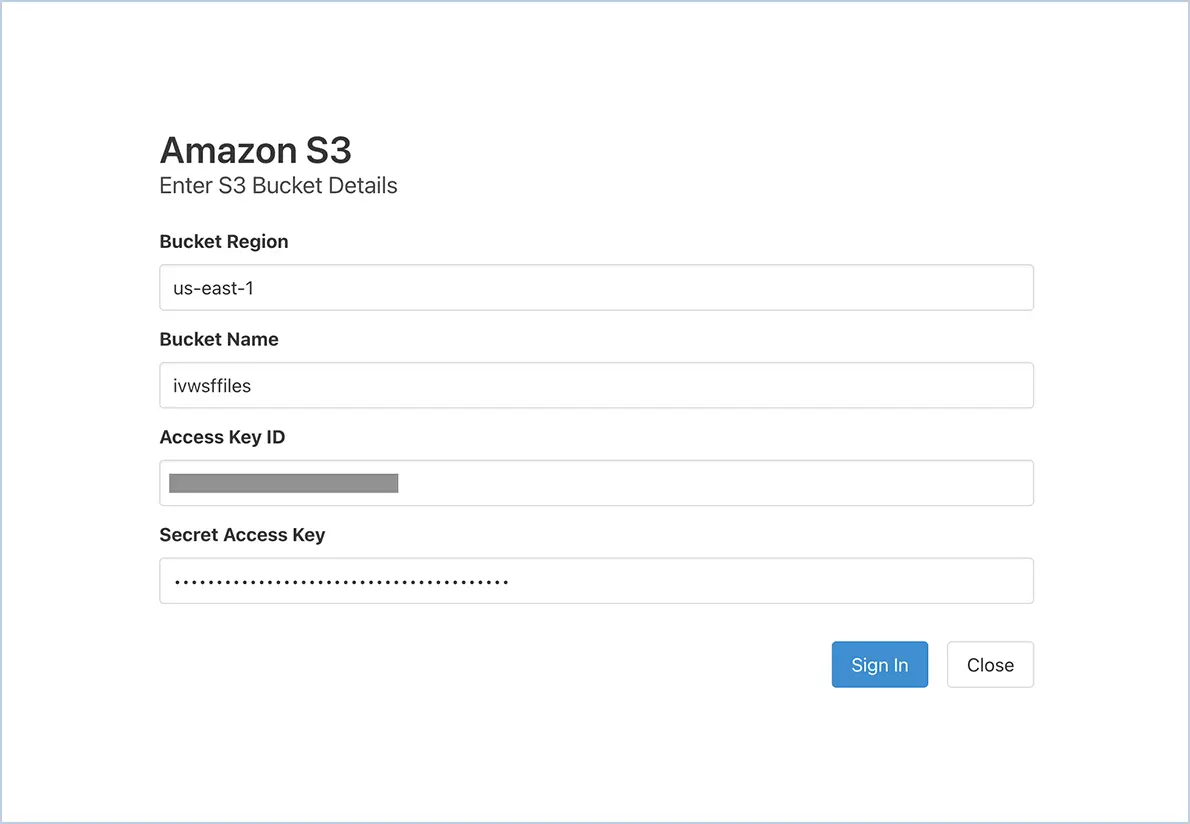
- Click the Sign In button. If all the values are correct, the following screen will appear with the file details from the specified S3 bucket.
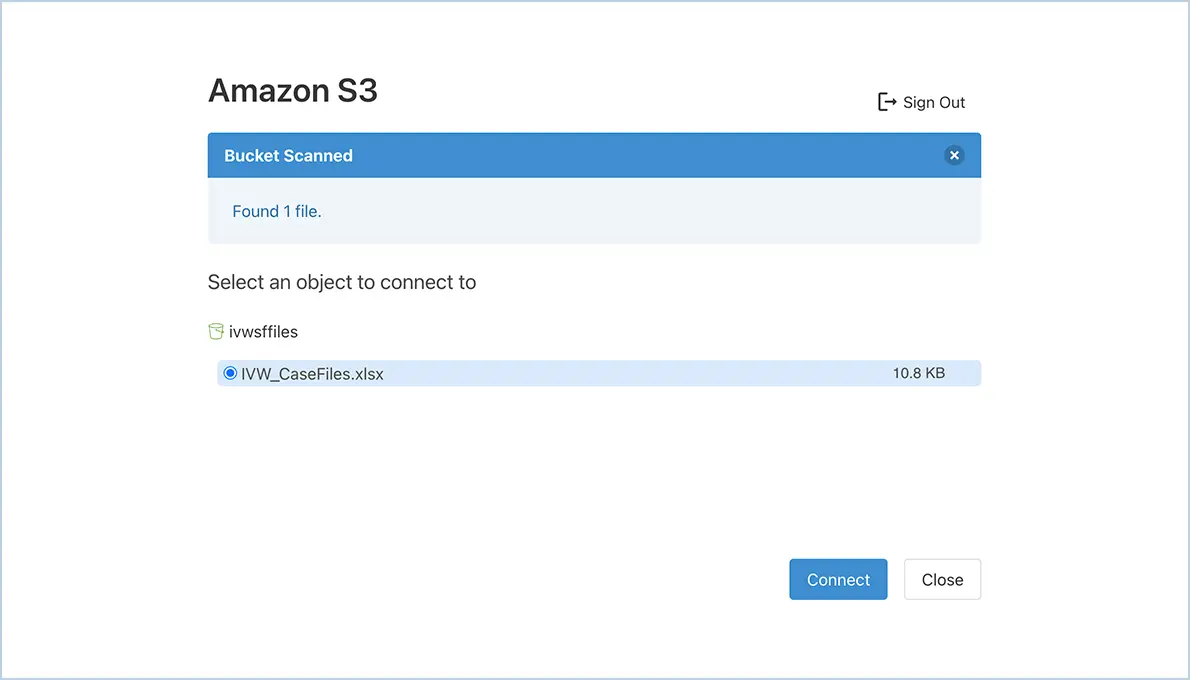
- Choose the file and click Connect. If all permissions and access keys are correct, you will see the data in the Tableau Prep application as shown below.
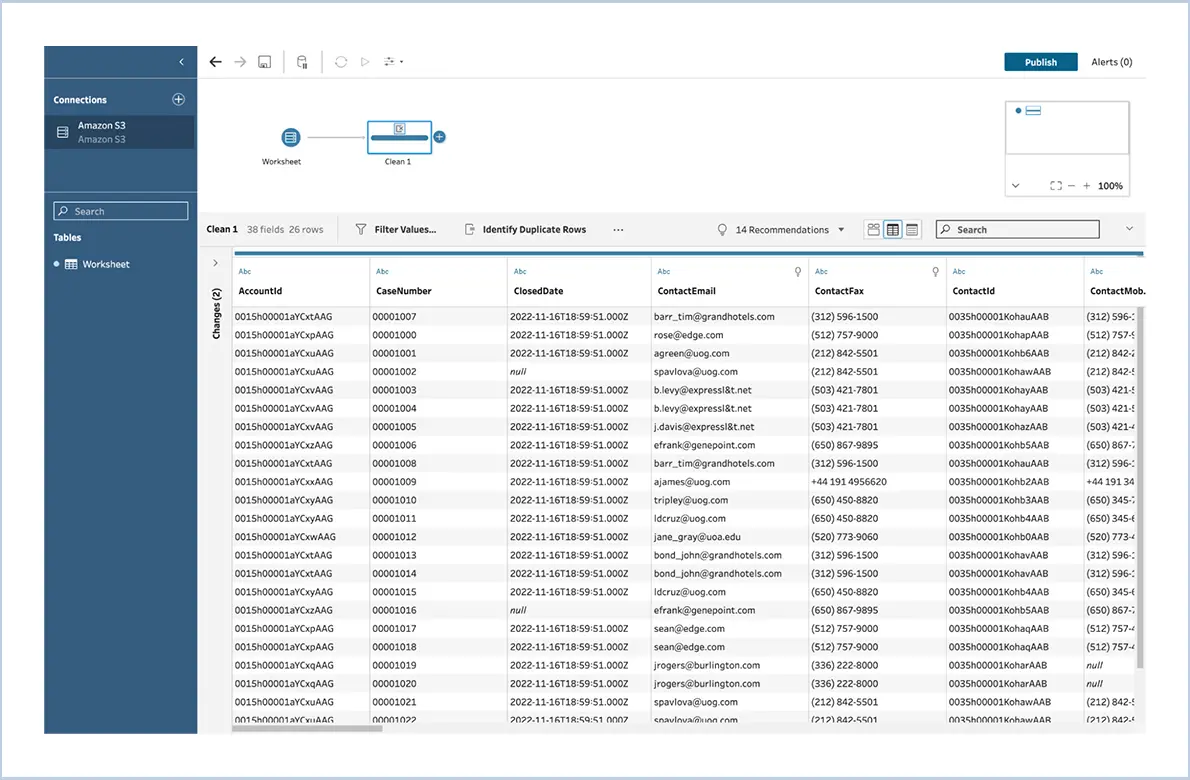
All configurations are complete on both the AWS and Tableau sides. Once the connection is established, we can manipulate the data and proceed with the data analysis.
Notes :
- If the connection fails during Tableau setup, first check the following:
- The access key row is still available at the IAM user level.
- The IAM user has the necessary permissions to access the bucket.
- If the selected table is not visible in Tableau, check the following:
- Ensure the file is not corrupted.
- Verify that the file contains the current data.