
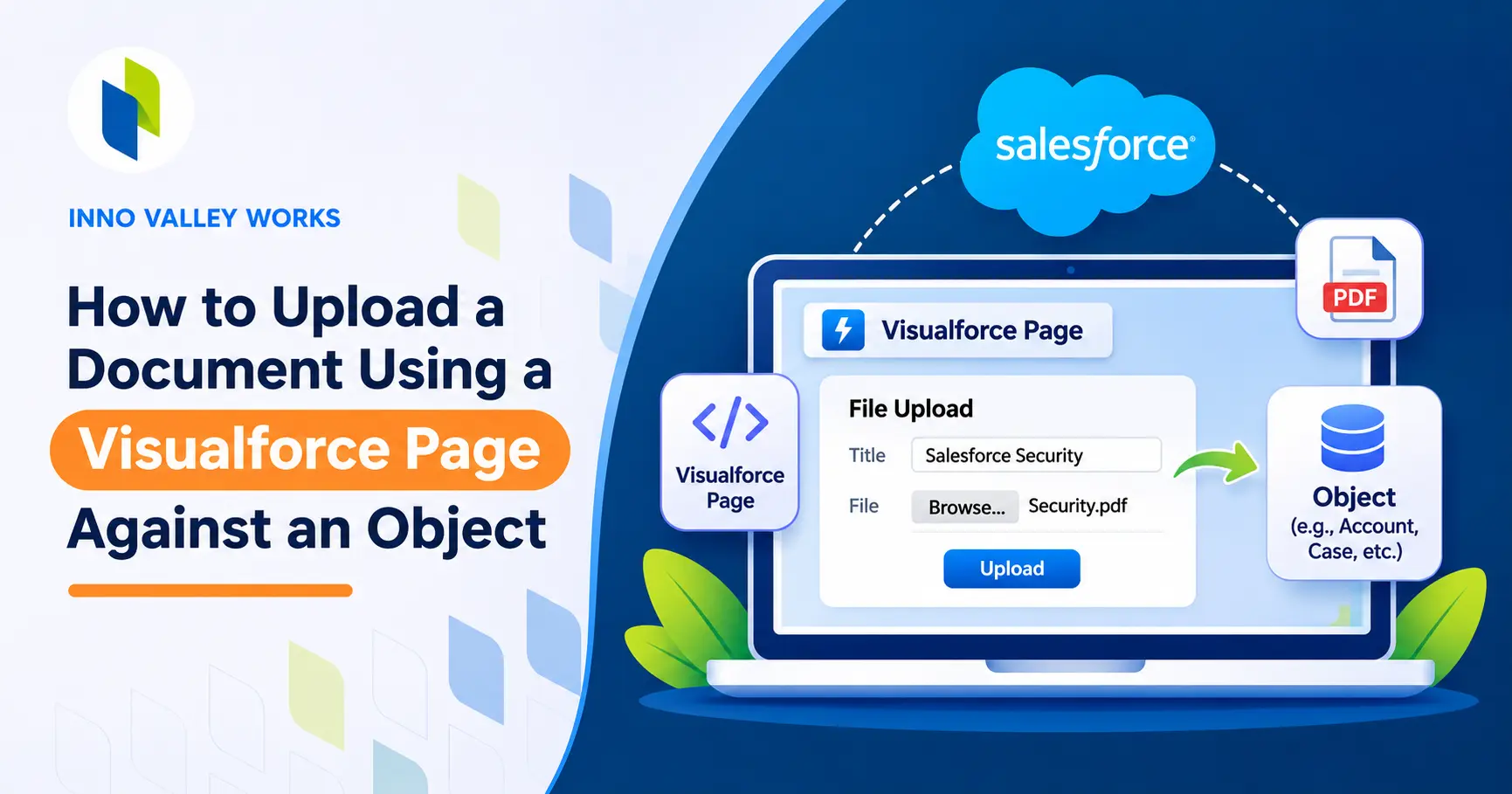

To upload a file as an attachment or as a file itself by using Visualforce, it must have a Record Id for the Uploaded file to link with that particular Record. Uploading a document using Visualforce page against object requires either a predefined or dynamically generated Record Id. You can upload a file that automatically gets saved as an attachment against an object also by automatic generation of the Record Id. Hence, this topic can help you to upload a file to “Documents” under any folder you desire and then store the reference of the file as a field in the record. This way, it enables access to the document from the record directly at a later point in time.
Visualforce Page uses some Apex Input and Output Tags:
- <apex:inputText> to get File title as Input from User .
- <apex:inputFile> for choose attachment file.
- <apex:commandButton> to Save Attachment .
Apex Controller:
FileUploadController.cls
    public class FileUploadController {
    	public String Type { get; set; }
        public String fileName { get; set; }
        public transient  blob file { get; set; }
        public String title{ get;set; }
        public ContentVersion cv { get; set; }
        String contactId = System.currentPagereference().getParameters().get('Id');
        public FileUploadController(ApexPages.StandardController controller) {
        }

        public PageReference upload() {
            ContentVersion cv = new ContentVersion();
            cv.versionData = file;
            cv.title = title;
            cv.pathOnClient = fileName;
            cv.FirstPublishLocationId = contactId;
            try
            {
                Insert cv;
            }
            catch (DMLException e)
            {
                ApexPages.addMessage(new ApexPages.message(ApexPages.severity.ERROR,'Error uploading Document in Library'));
                return null;
            }
            finally
            {
                cv = new ContentVersion();
            }
            ApexPages.addMessage(new ApexPages.message(ApexPages.severity.INFO,'Document uploaded successfully to library'));
            return null;
        }
    }
Visualforce Page:
FileUpload.page
    <apex:page standardController="Contact" extensions="FileUploadController">
        <apex:slds />
        <div class="slds-scope slds-align_absolute-center">
            <apex:form enctype="multipart/form-data" >
                <apex:messages />
                <apex:pageBlock title="File Upload" >
                    <apex:pageBlockSection columns="1">
                        <apex:pageBlockSectionItem >
                            <apex:outputLabel> Title </apex:outputLabel>
                            <apex:inputText value="{!title}"/>
                        </apex:pageBlockSectionItem>
                        <apex:pageBlockSectionItem >
                            <apex:outputLabel> File Upload </apex:outputLabel>
                            <apex:inputFile value="{!file}" fileName="{!fileName}" />
                        </apex:pageBlockSectionItem>
                    </apex:pageBlockSection>
                    <apex:commandbutton action="{!upload}" value="Upload" status="status"/>
                </apex:pageBlock>
            </apex:form>
        </div>
    </apex:page>
Upload Attachment in Classic:

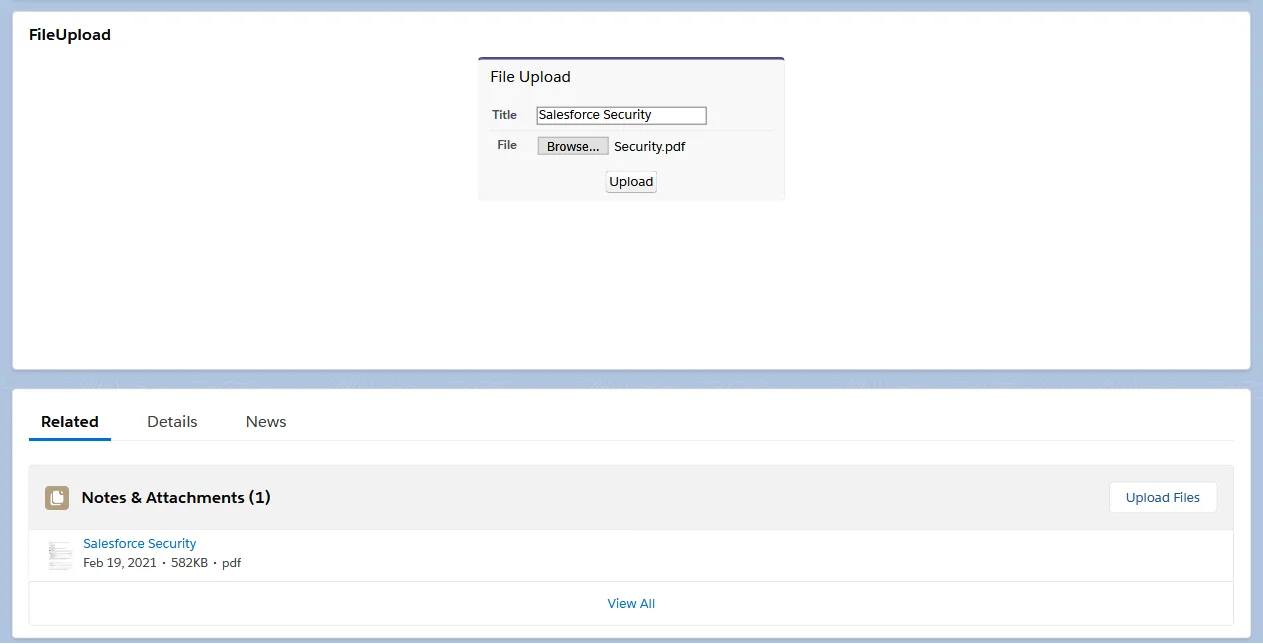
Upload Attachment in Lightning:
Need help putting this into practice in your org? Our Salesforce custom development team can help you plan, build and support it.